
This action queue is used for performing workflow actions.
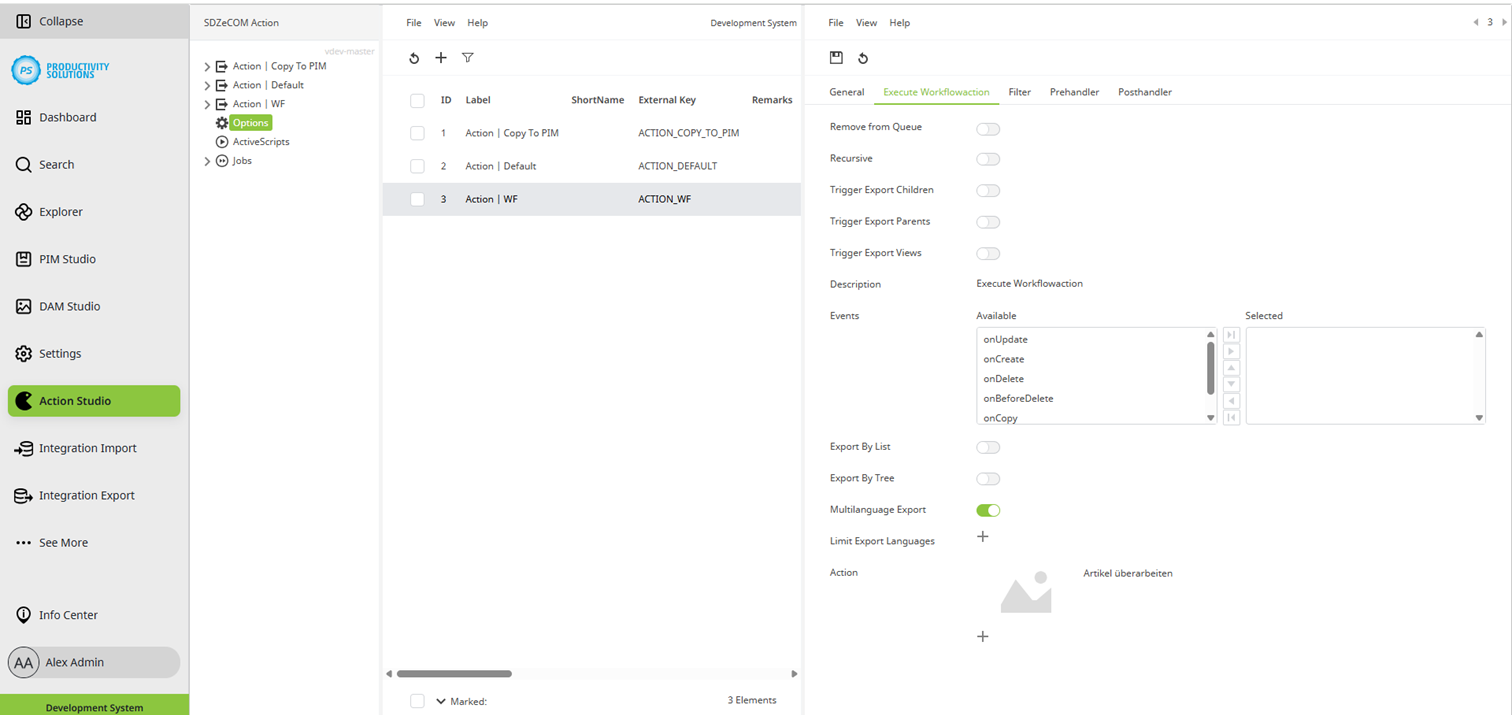
Field
|
Description
|
|---|---|
|
Remove from queue |
Activate this option if objects that no longer meet the filter criteria are to be removed from the queue. |
|
Recursive |
Decide whether you want to export recursively – i. e. parent elements and their child elements. If you activate this option, another “Recursive filter” tab appears in which you define the filter options for the child elements. You filter the parent elements in the “Filter” tab. The options for both filters are the same. |
|
Trigger export children |
If you activate this option, the export of the child elements is triggered. |
|
Trigger export parents |
If you activate this option, the export of the parent elements is triggered. |
|
Trigger export views |
If you activate this option, the export of the associated channel elements is triggered. |
|
Description |
|
|
Events |
Select the events in which an object is to be added to the queue:
With the “onBeforeDelete” event, the entry is removed from the queue when an object is deleted. The “Remove from Queue” option must also be activated to do this. |
|
Export by list |
Activate this option to be able to add objects from the list view in the Studio to the queue. Procedure:
|
|
Export by tree |
Activate this option to be able to add objects from the tree in the Studio to the queue. Vorgehensweise:
|
|
Multilanguage export |
If several languages are to be exported in one XML, select the multilanguage export. Otherwise, the languages selected for “Limit export languages” are exported in separate XMLs. |
|
Limit export languages |
Select the languages to be exported. |
|
Action |
Select the workflow action(s) to be performed. |